Recommended PC requirements
Component | Recommended specifications |
|---|---|
Processor | Intel i7 / AMD Ryzen 7 or greater |
Graphics card | Nvidia RTX 30 series* |
Memory | 16 GB DDR4 RAM |
Operating system | Windows 11 |
CUDA | 12.8 |
GStreamer | 1.22.12 |
Note: An NVIDIA GPU with CUDA cores is required. AMD or Intel integrated graphics are not supported for core processing tasks.
Step 1: Download and install Cuda toolkit
Update your GPU driver to the latest version.
Download the CUDA Toolkit (CUDA v12.8) and install it using the default settings.
Step 2: Install Gstreamer library
Download the GStreamer library(gstreamer-1.0-msvc-x86_64-1.22.12.msi and gstreamer-1.0-devel-msvc-x86-1.22.12.msi).
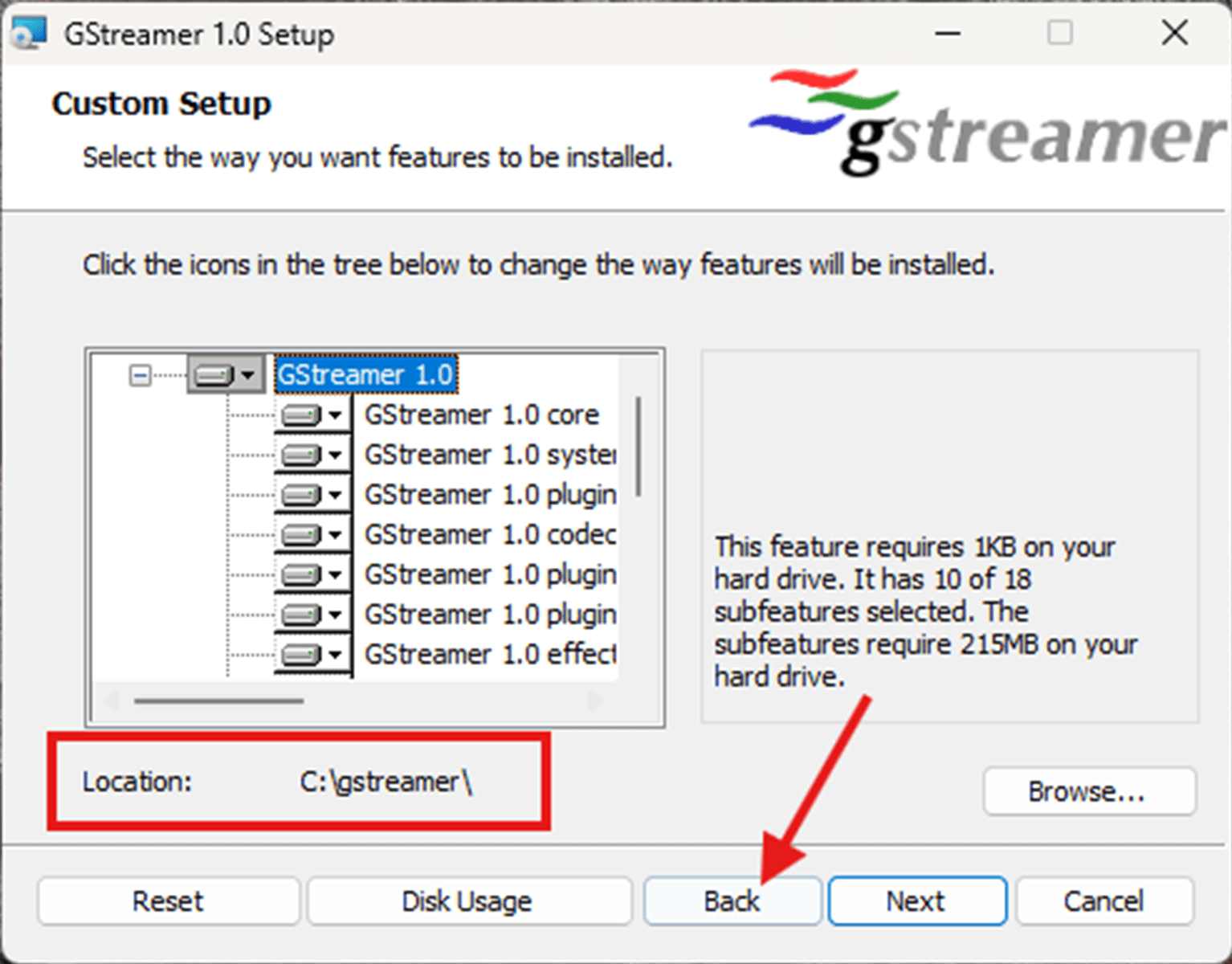
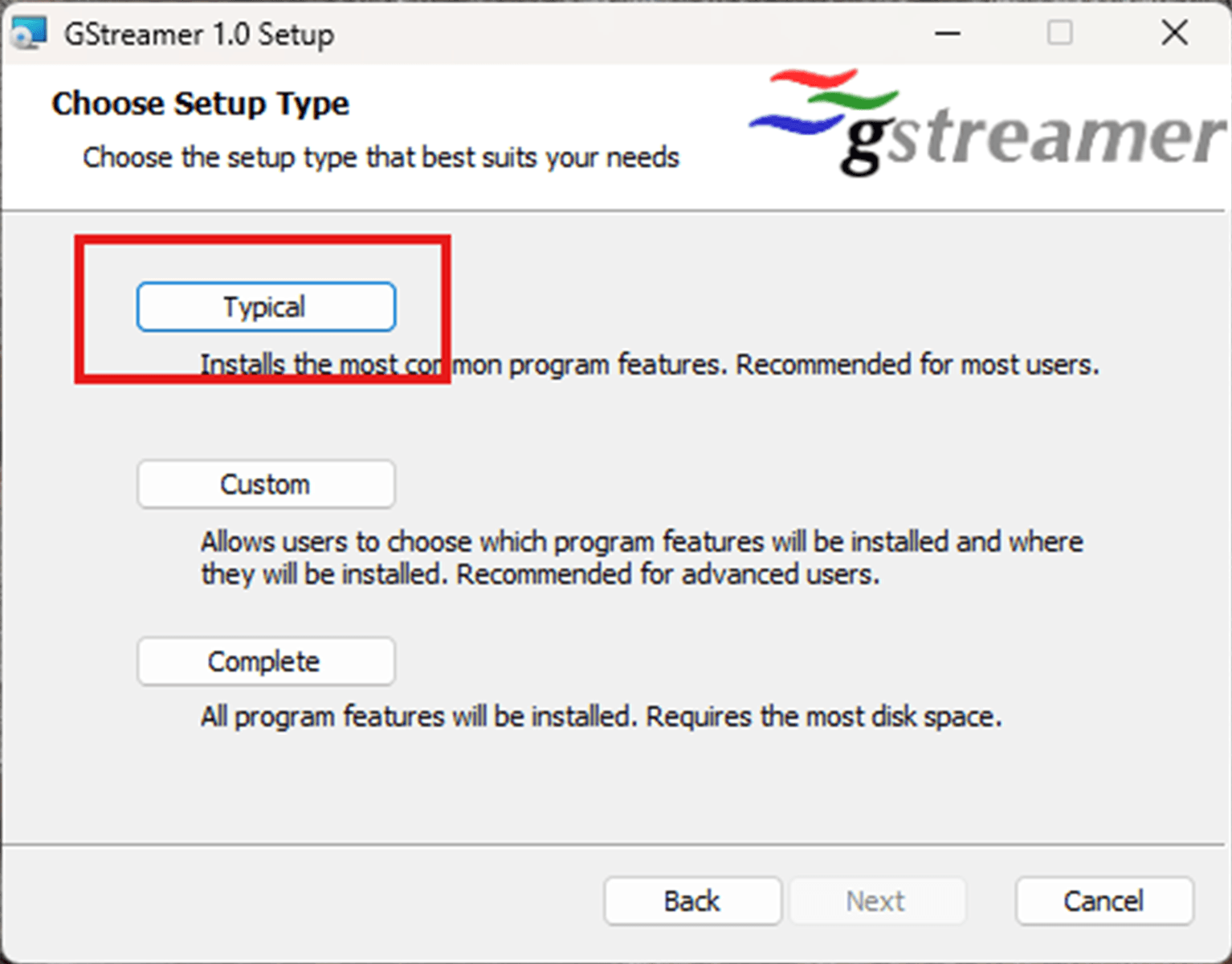
During installation, select ‘Custom’ and set the installation path to C:\gstreamer\. Then, go back and select ‘Typical’ to finish the installation.
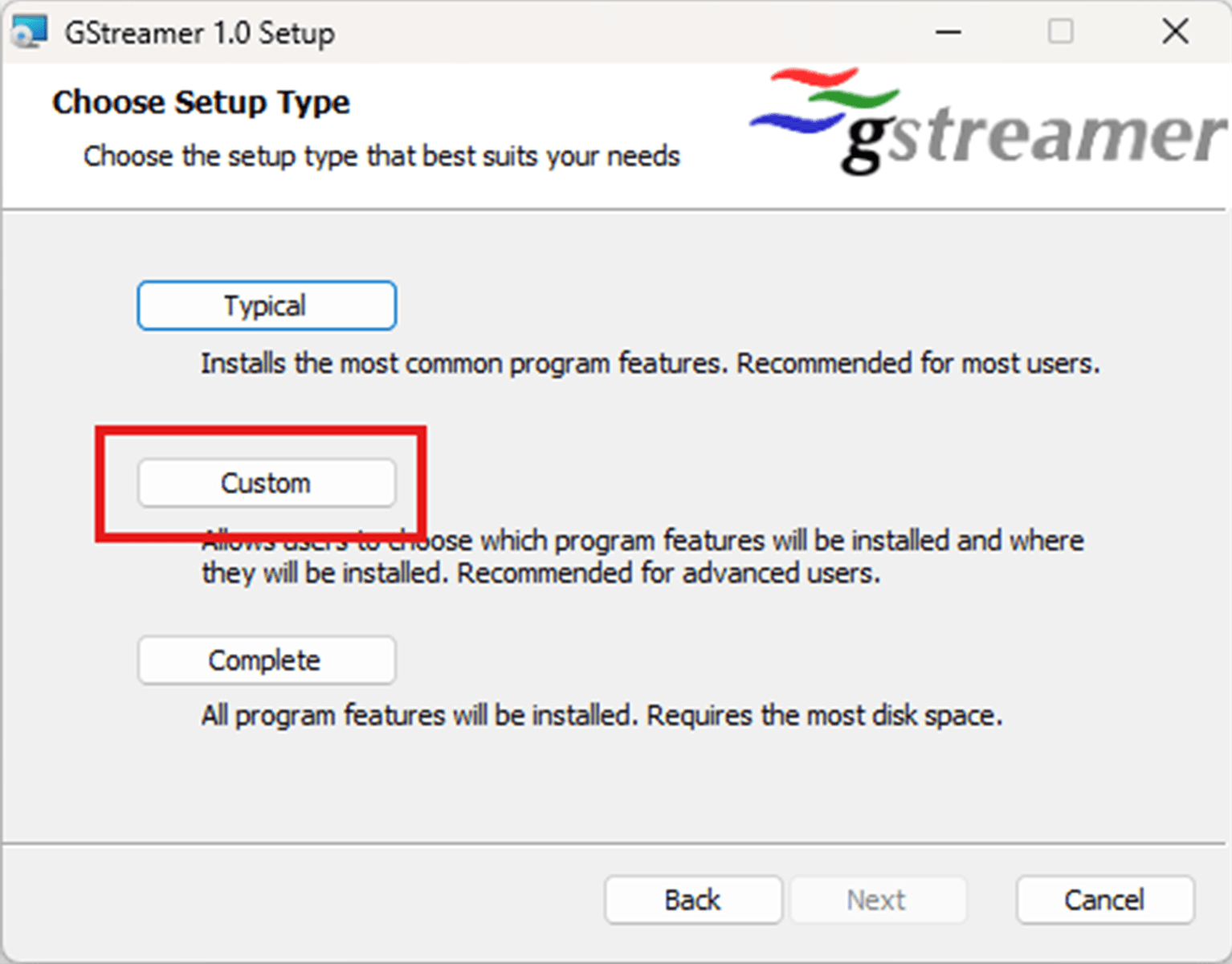
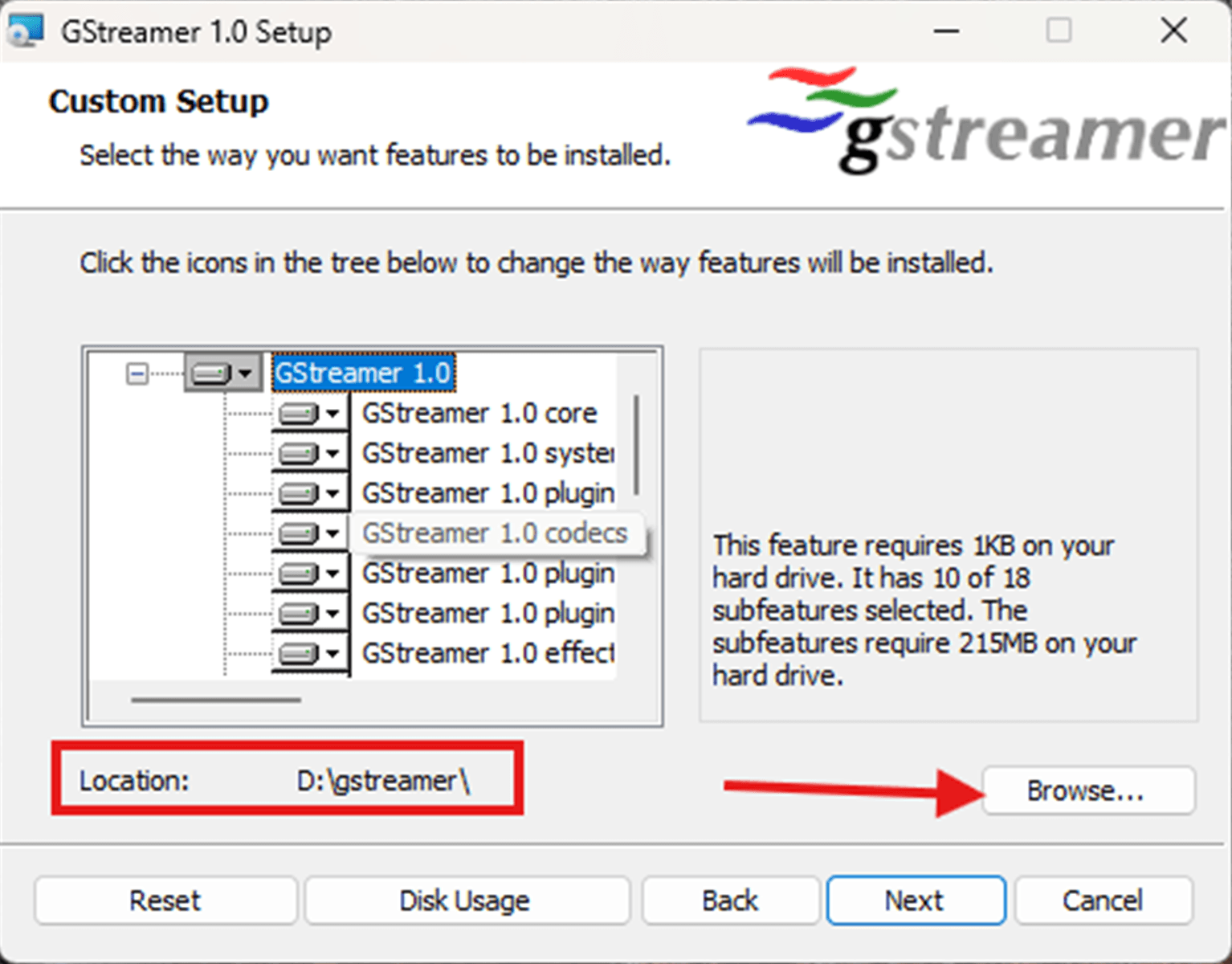
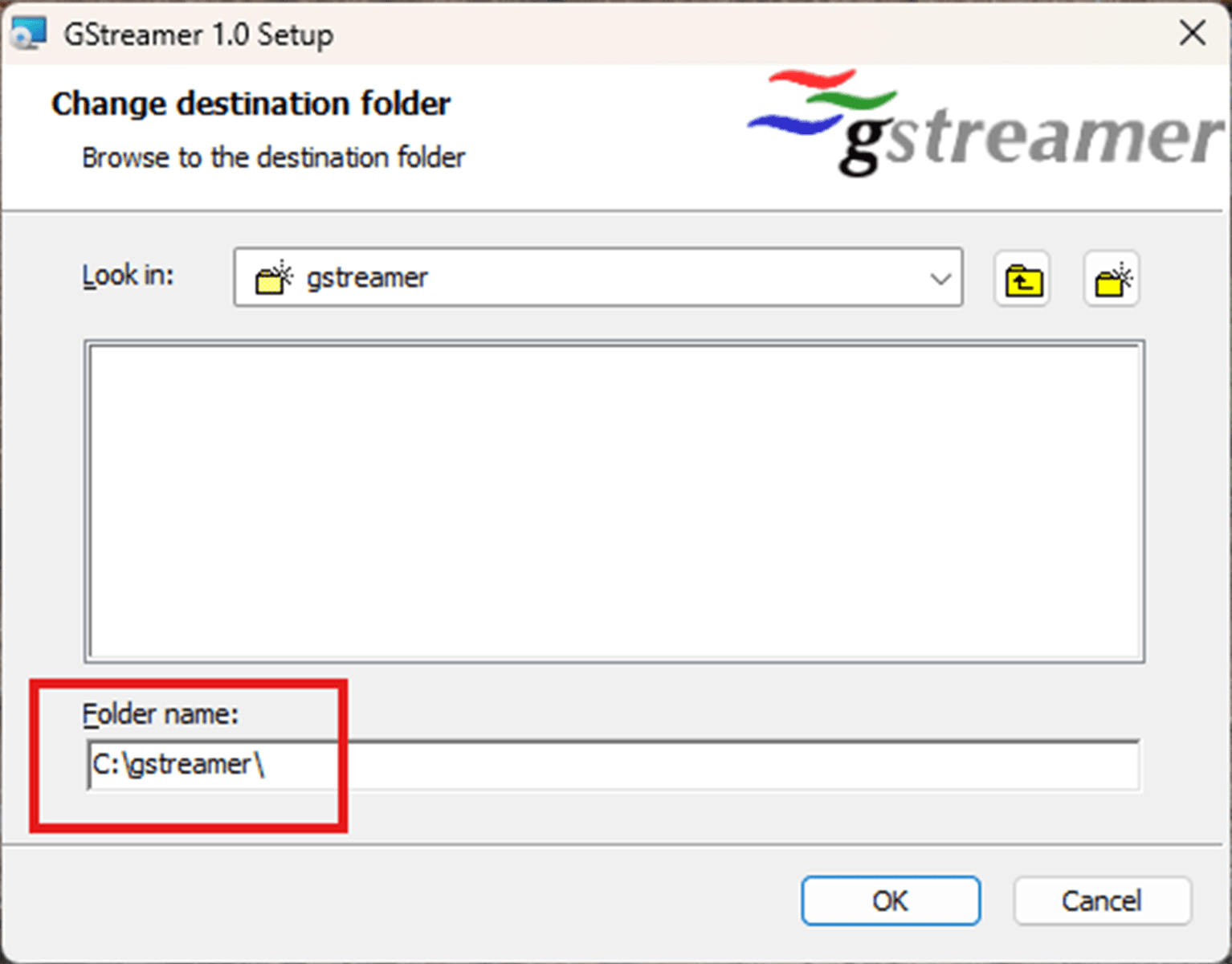
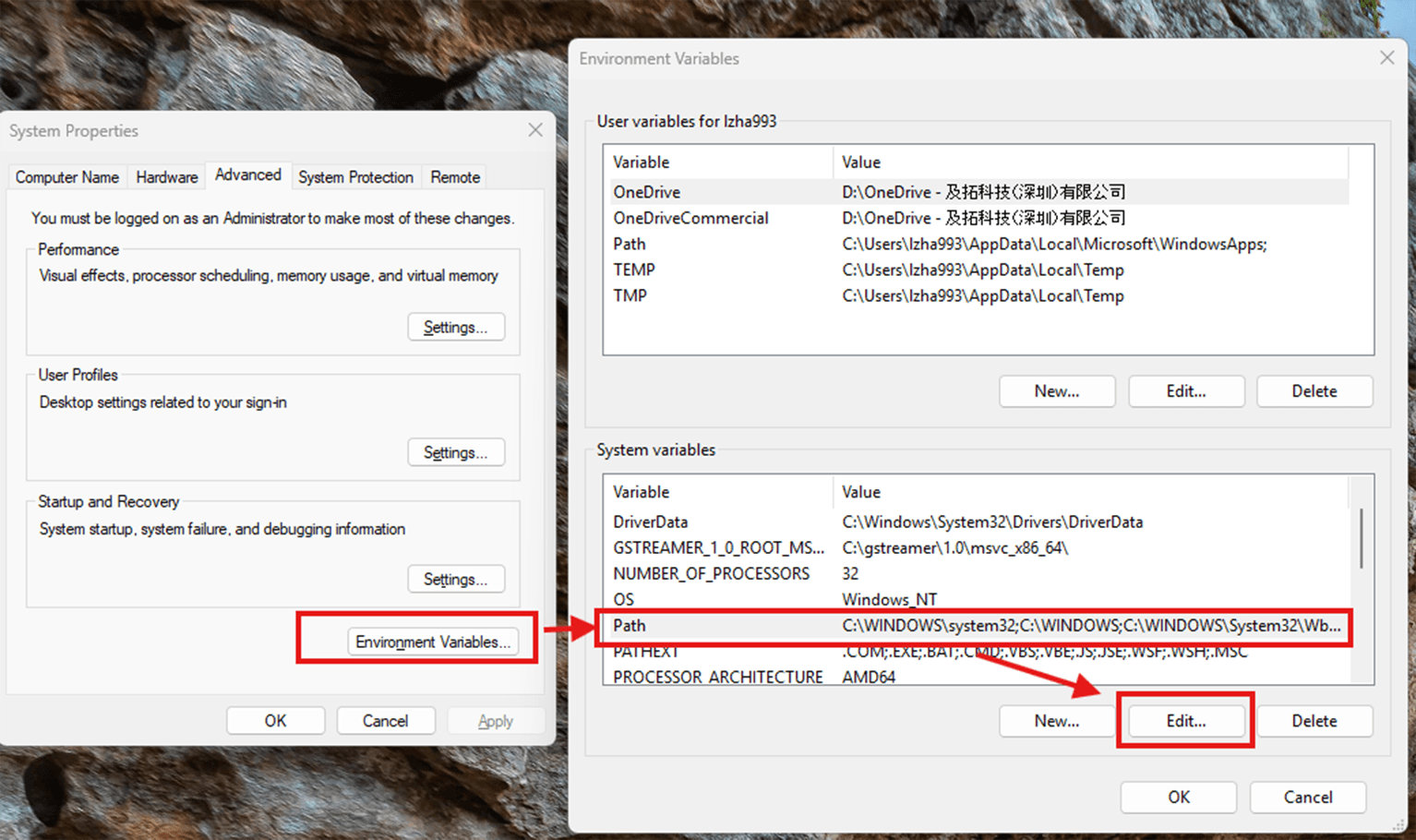
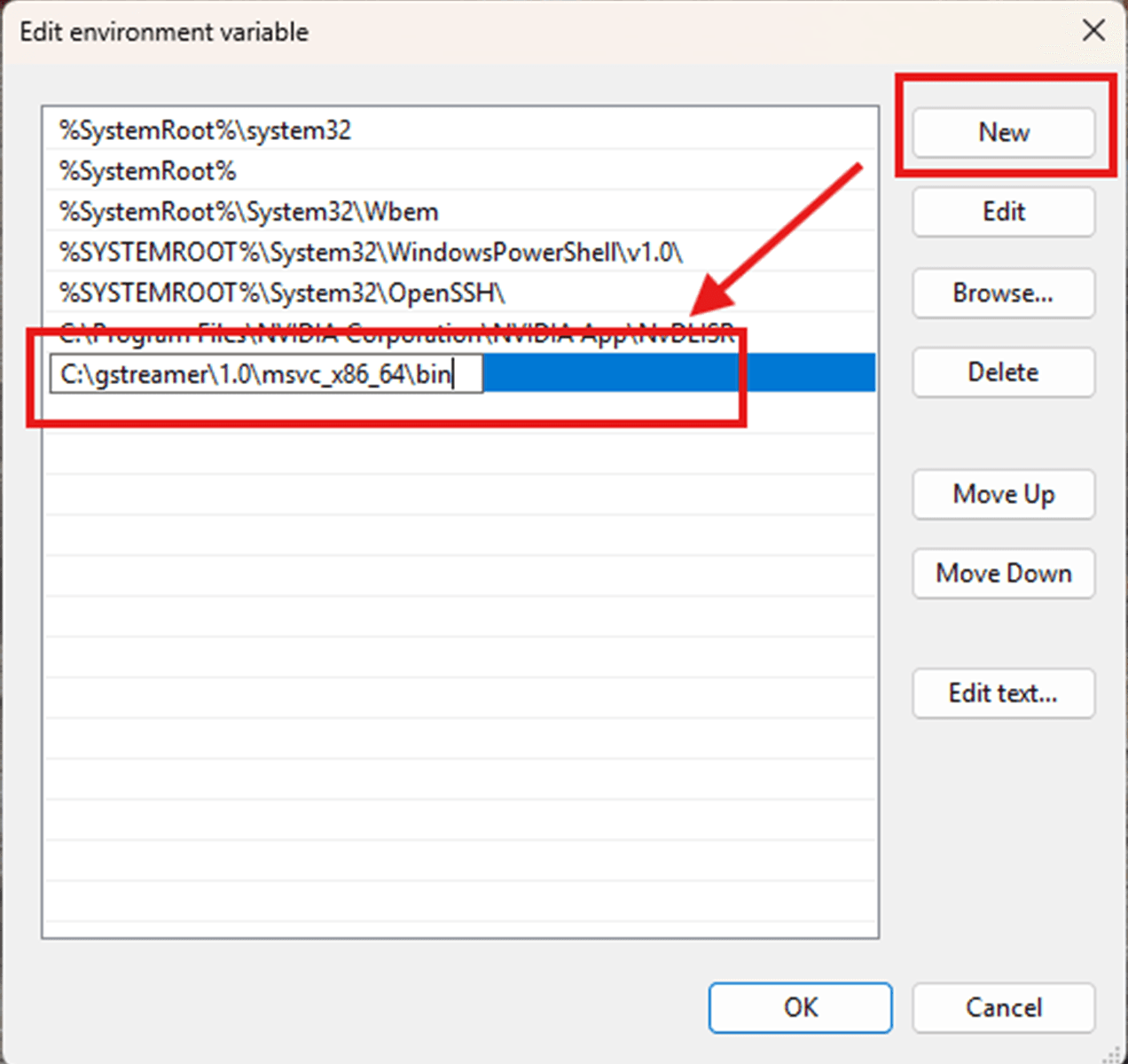
After installation, add
C:\gstreamer\1.0\msvc_x86_64\bintoPATHin your system environment variables. Restart your computer to apply the changes.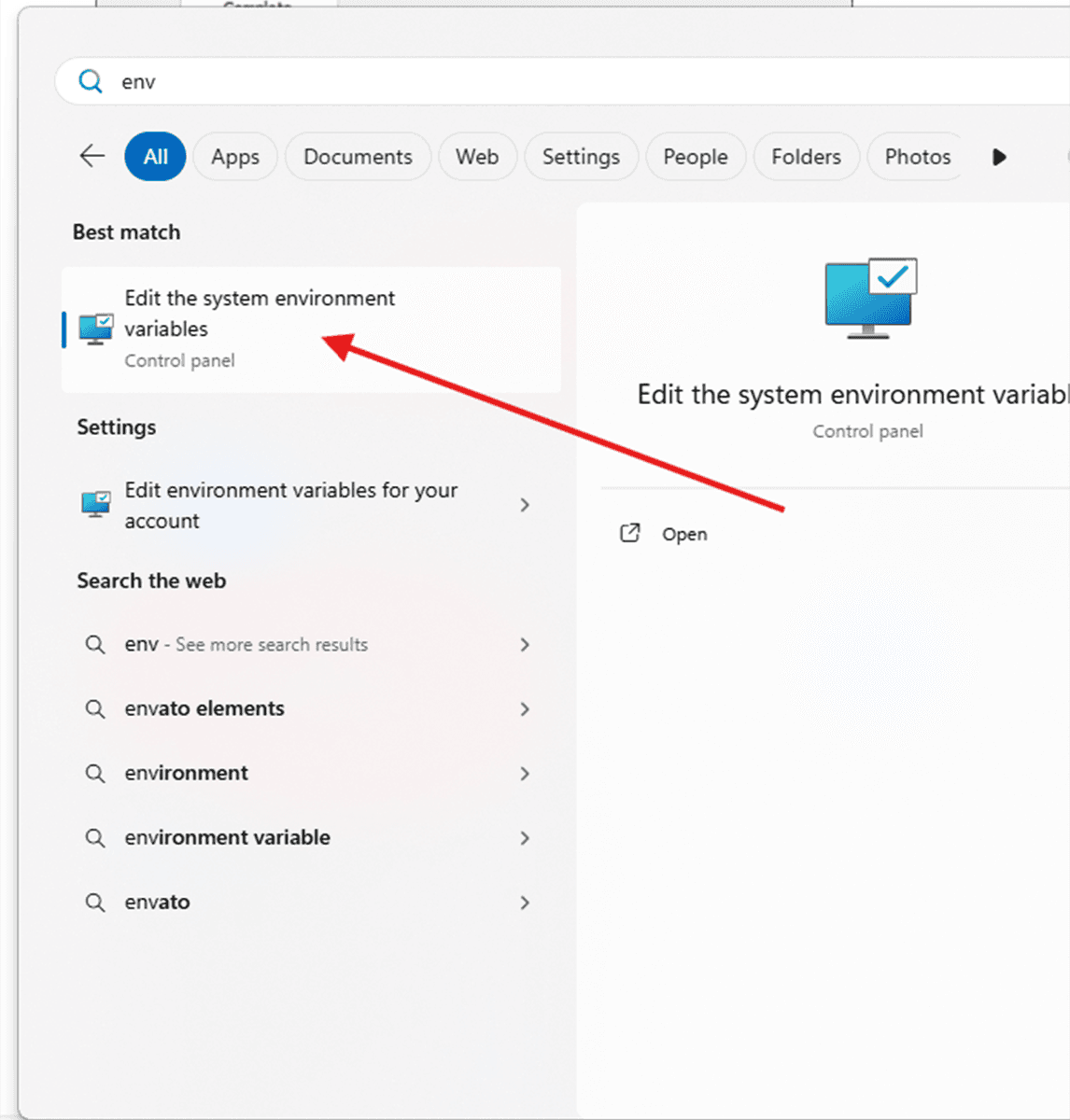
Step 3: Install the Bonjour library
Download Bonjour exe and install it using the default settings.
Step 4: Download and config the app
Download the installation package(DetermFlowbitViewer_1.1.0_Setup.exe) for Windows 11 X64 systems.
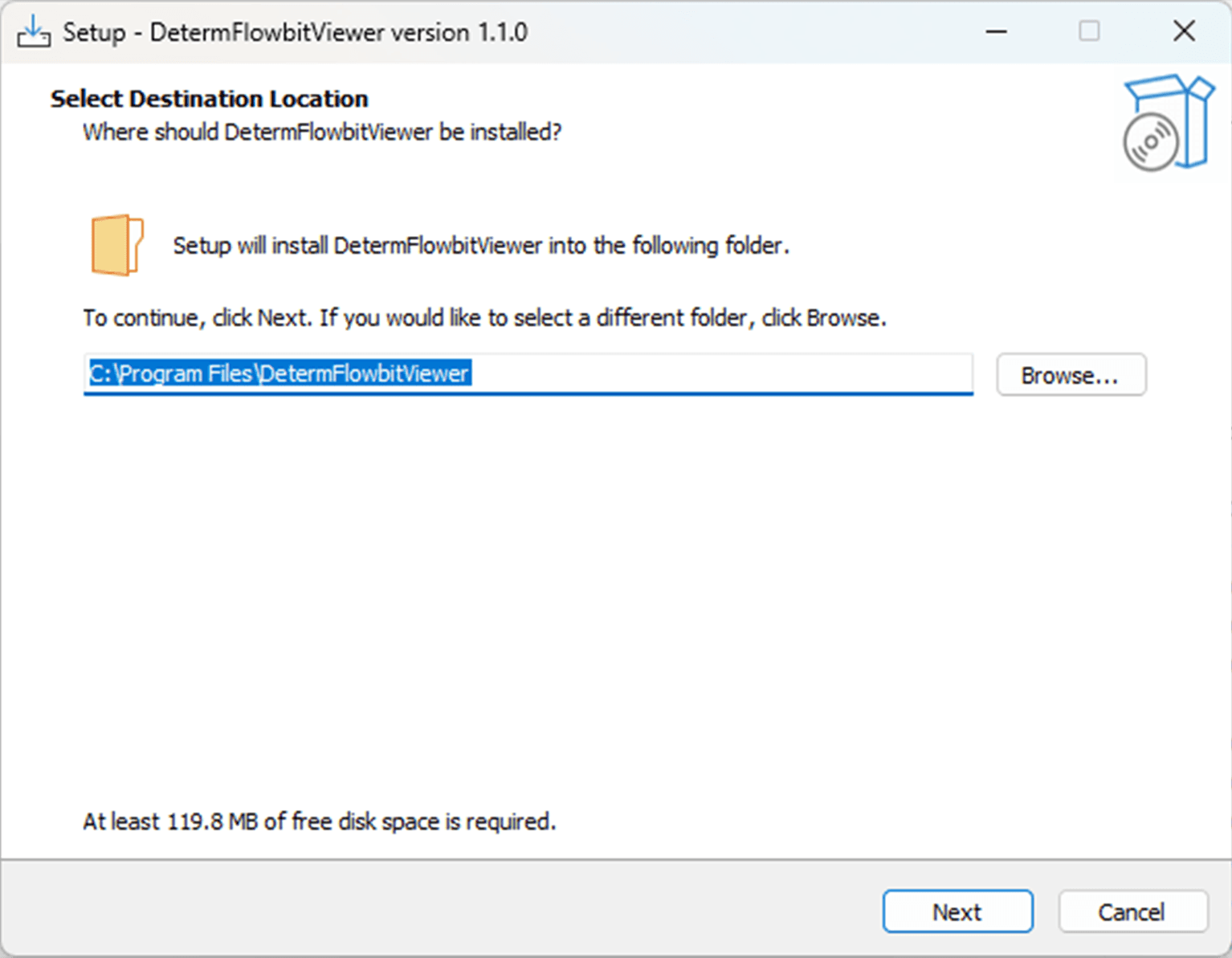
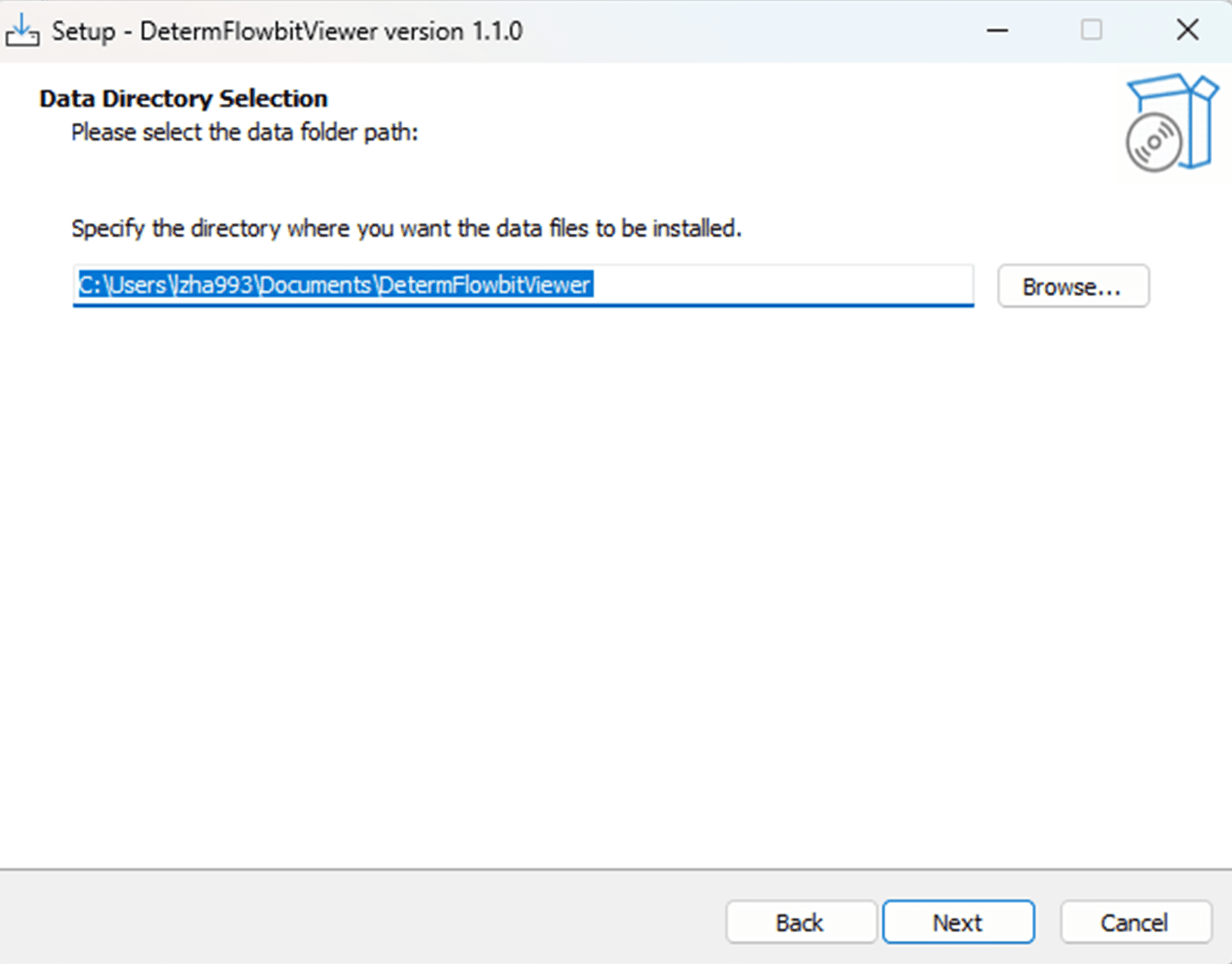
You can change the installation and data folder paths if you prefer. The data folder is where recorded videos will be saved.
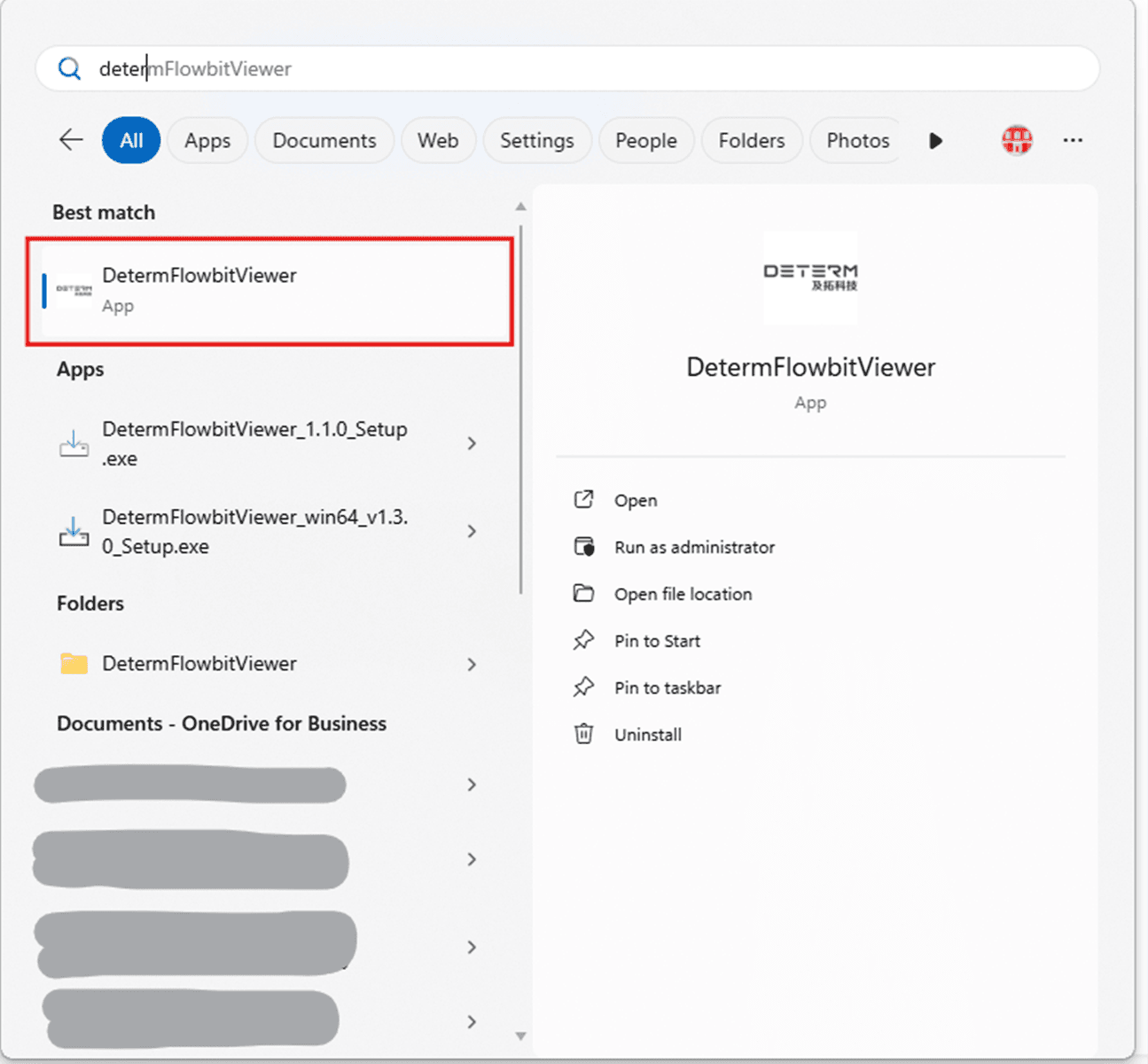
After installation, search for ‘Determ Flowbit Viewer’ in your applications and run it.