UE plugin
Flowbit Unreal Windows Setup Guide
Introduction
This guide provides step-by-step instructions on how to set up and use the Determ Voxel UE Plugin for Unreal Engine 5 on Windows. This plugin is designed for developers looking to integrate Determ Voxel UE Plugin into their UE projects. The guide includes detailed instructions on installation, configuration, building, and usage.
This plugin has been tested using Unreal Engine version 5.5.4 and requires Visual Studio 2022 for successful compilation. Make sure that your system meets the following prerequisites before proceeding.
Prerequisites
Install CUDA
Download the CUDA Toolkit (version 12.8, cuda_12.8.0_windows_network.exe) and install it using the default settings.
Install GStreamer library
Download the GStreamer library(gstreamer-1.0-msvc-x86_64-1.22.12.msi and gstreamer-1.0-devel-msvc-x86-1.22.12.msi).
Tested on version 1.22.12
Install Bonjour
Download Bonjour exe and install it using the default settings.
System Requirements
Unreal Engine 5.5 or later.
Visual Studio 2022 with the following components:
Desktop development with C++
Game development with C++
.NET desktop development (for some tools)
Windows 11 or later
Setting up the Plugin
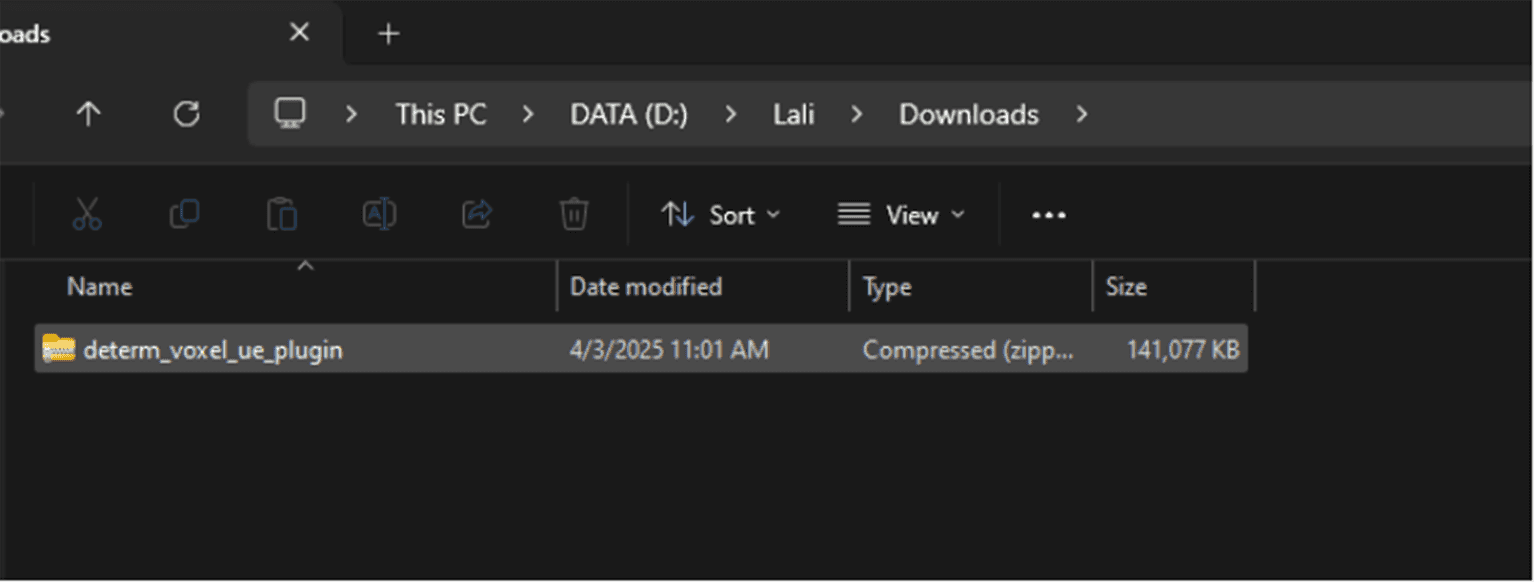
Download the plugin ZIP(determ_flowbit_server_UE_windows_plugin_v1.4.zip).
Extract the contents of the ZIp file on to a specific path on your computer.
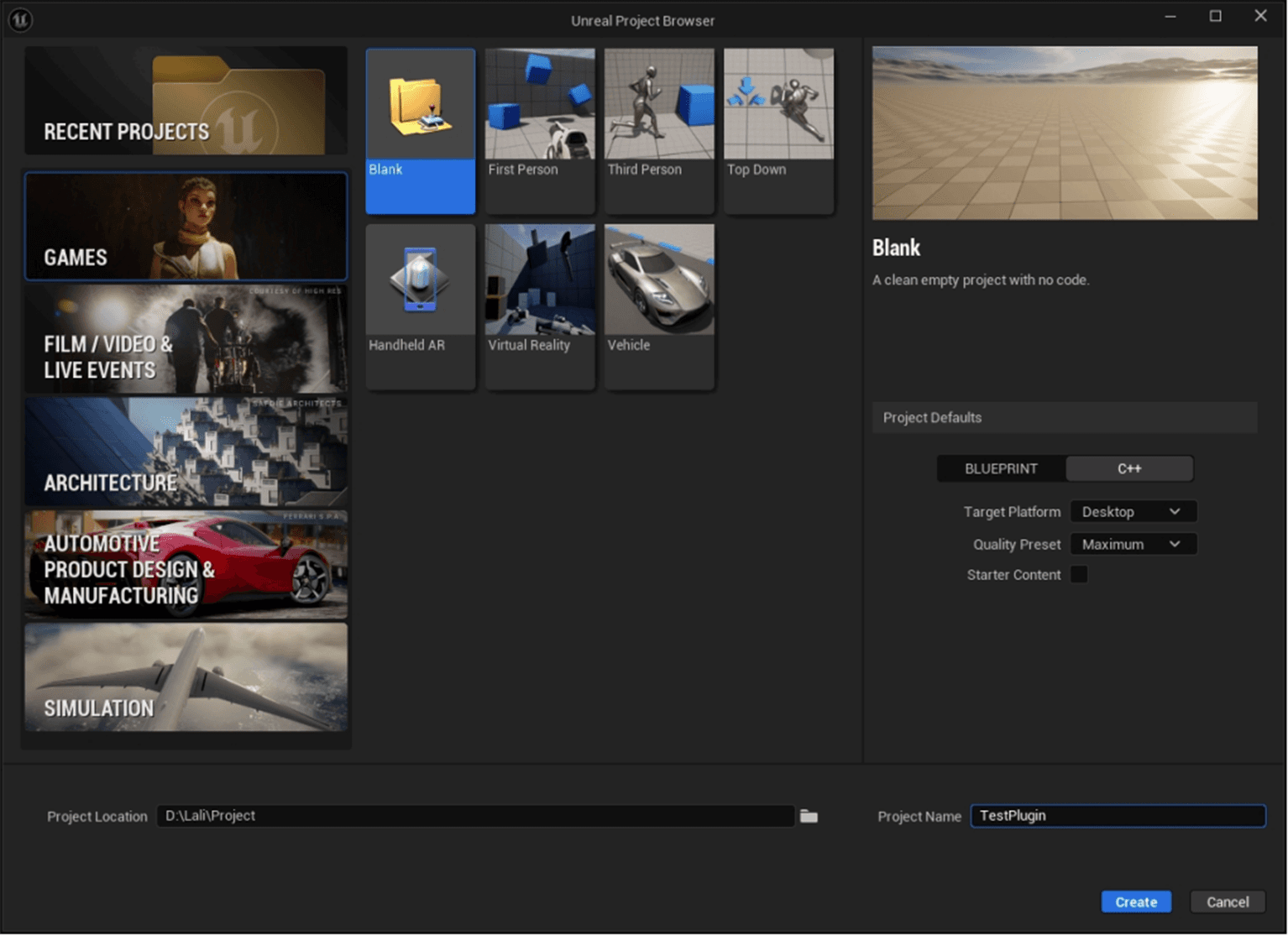
Create or Open an exisiting UE Project
Open Unreal Engine and either create a new project or open an existing one. Ensure your project is compatible with Unreal Engine 5.5.3.
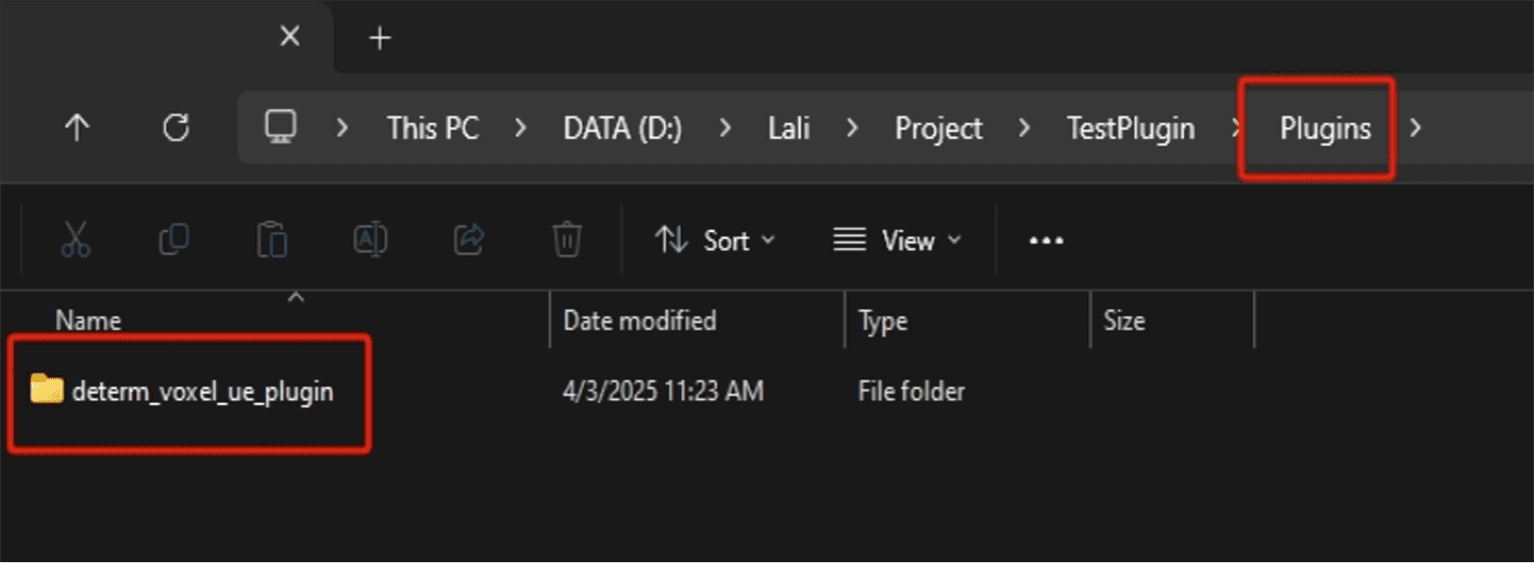
Add the Plugin to Your Project
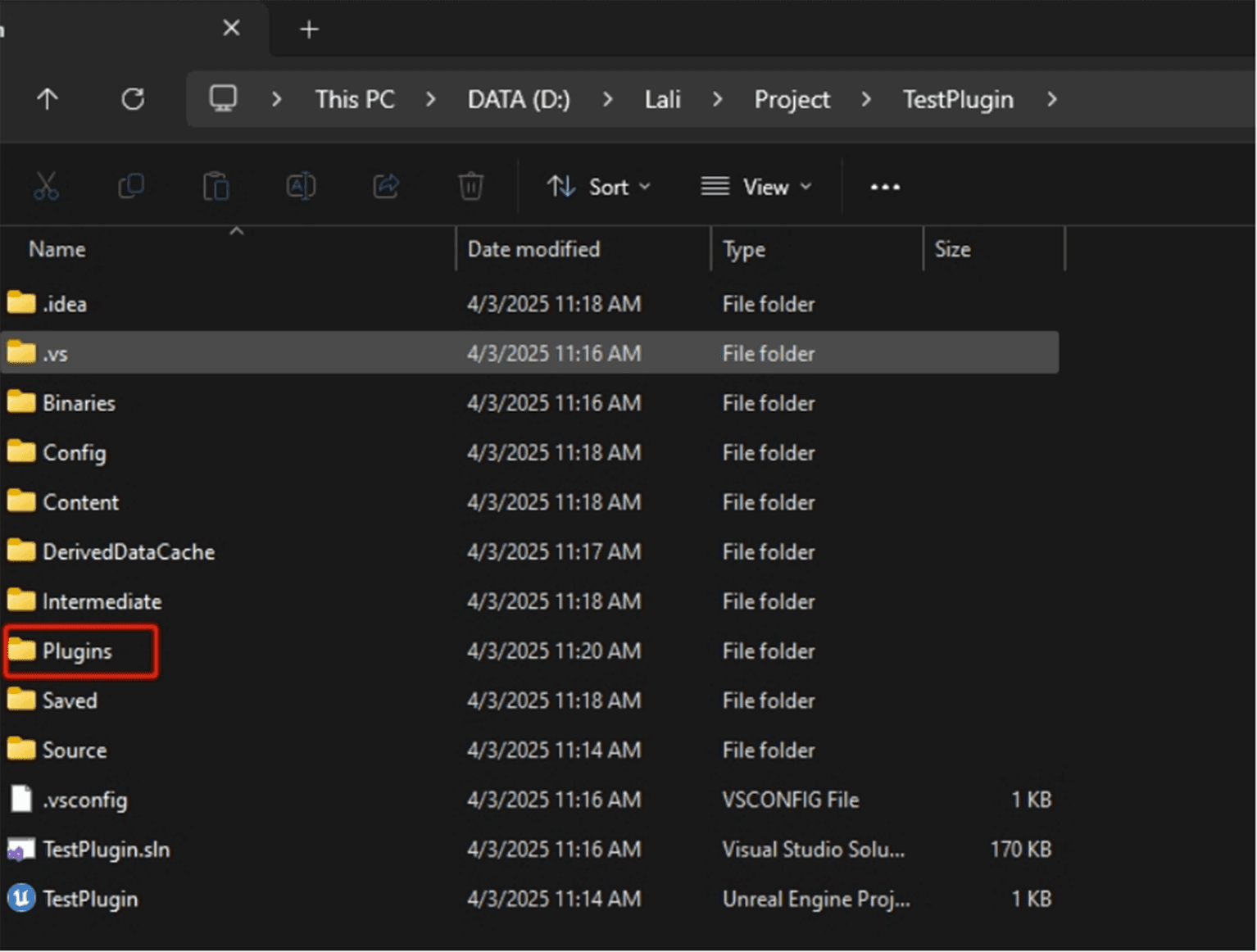
Navigate to the Plugins folder in your project directory. If the folder does not exist, create a new folder called Plugins.
Copy the extracted plugin folder from the ZIP file into your project's Plugins directory.
Enable the Plugin
Launch Unreal Engine and open your project.
Navigate to the Edit menu located in the toolbar.
Select Plugins from the dropdown menu.
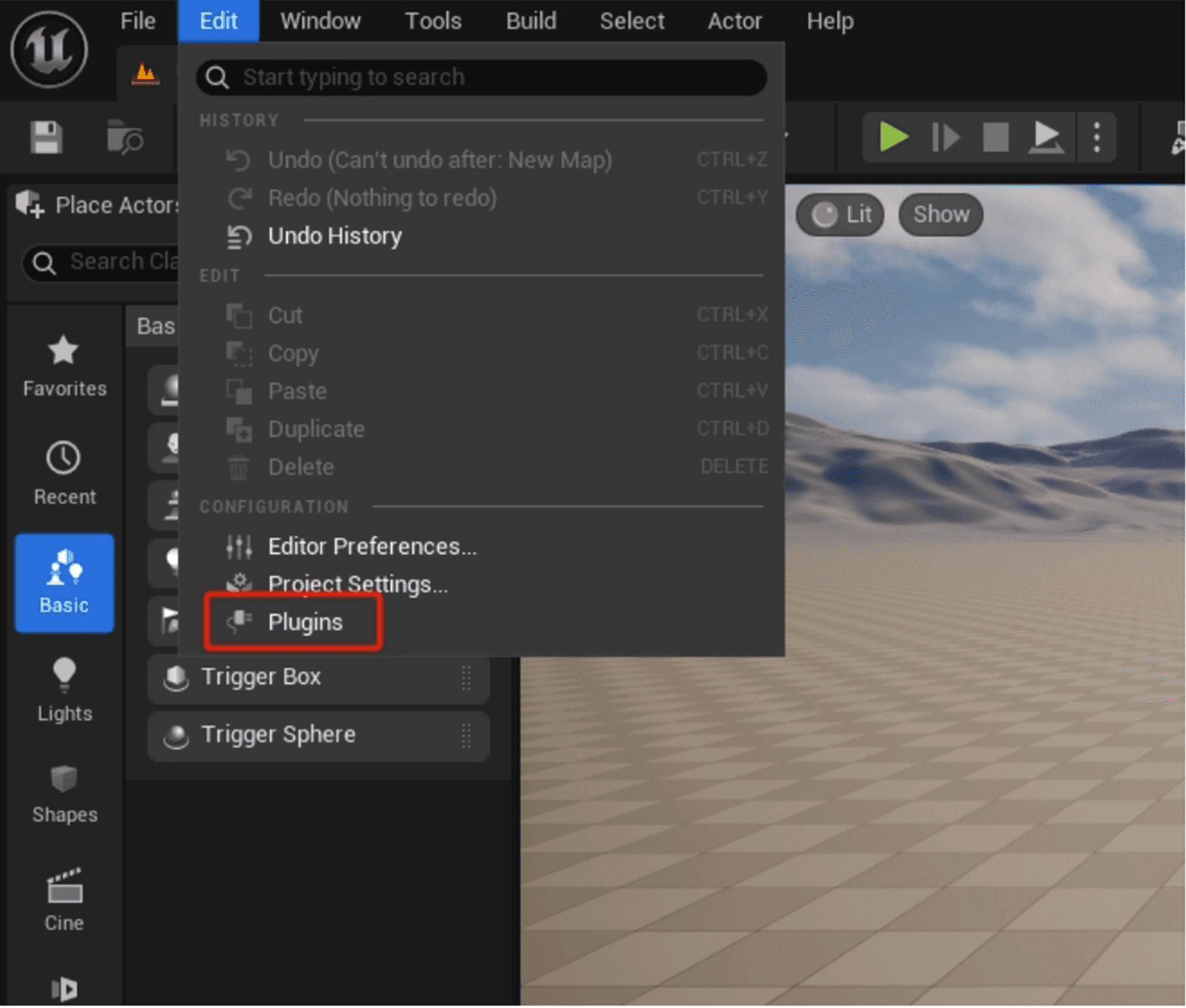
In the Plugins window, switch to the Installed tab.
Locate Determtech Voxel UE Plugin under the relevant category.
If the plugin is not already enabled, check the box next to its name to enable it.
A prompt will appear asking you to restart the editor for the changes to take effect. Restart the editor as instructed.
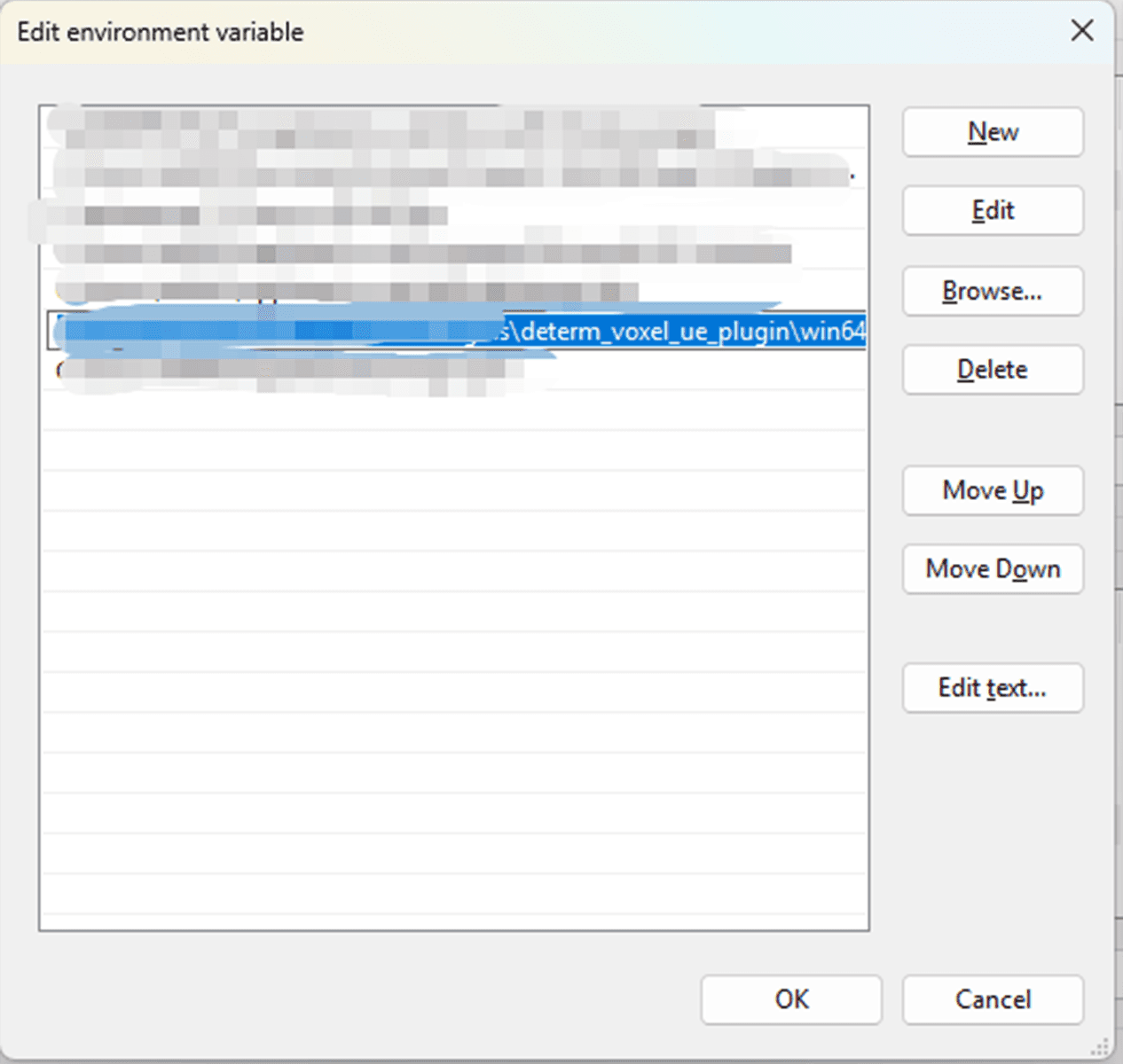
Add library path to the Enviroment Variable:
Head to your environment variable settings
Go to the user variables → Path
Add the [PROJEC ROOT]\Plugins\determ_voxel_ue_plugin\win64 to your path
Restart your computer
Congratulations! You have successfully installed the Determtech Voxel UE Plugin. At this point, you should have the plugin enabled and integrated into your Unreal Engine project. You are now ready to begin developing with the plugin.
To get started with demos and examples, please refer to the README.md document located in the Plugins/determ_voxel_ue_plugin directory. This document will guide you through various example scenes and functionalities that the plugin offers. Make sure to explore the plugin's documentation and experiment with its capabilities to fully leverage its potential in your development workflow. Happy developing!