Flowbit Capture
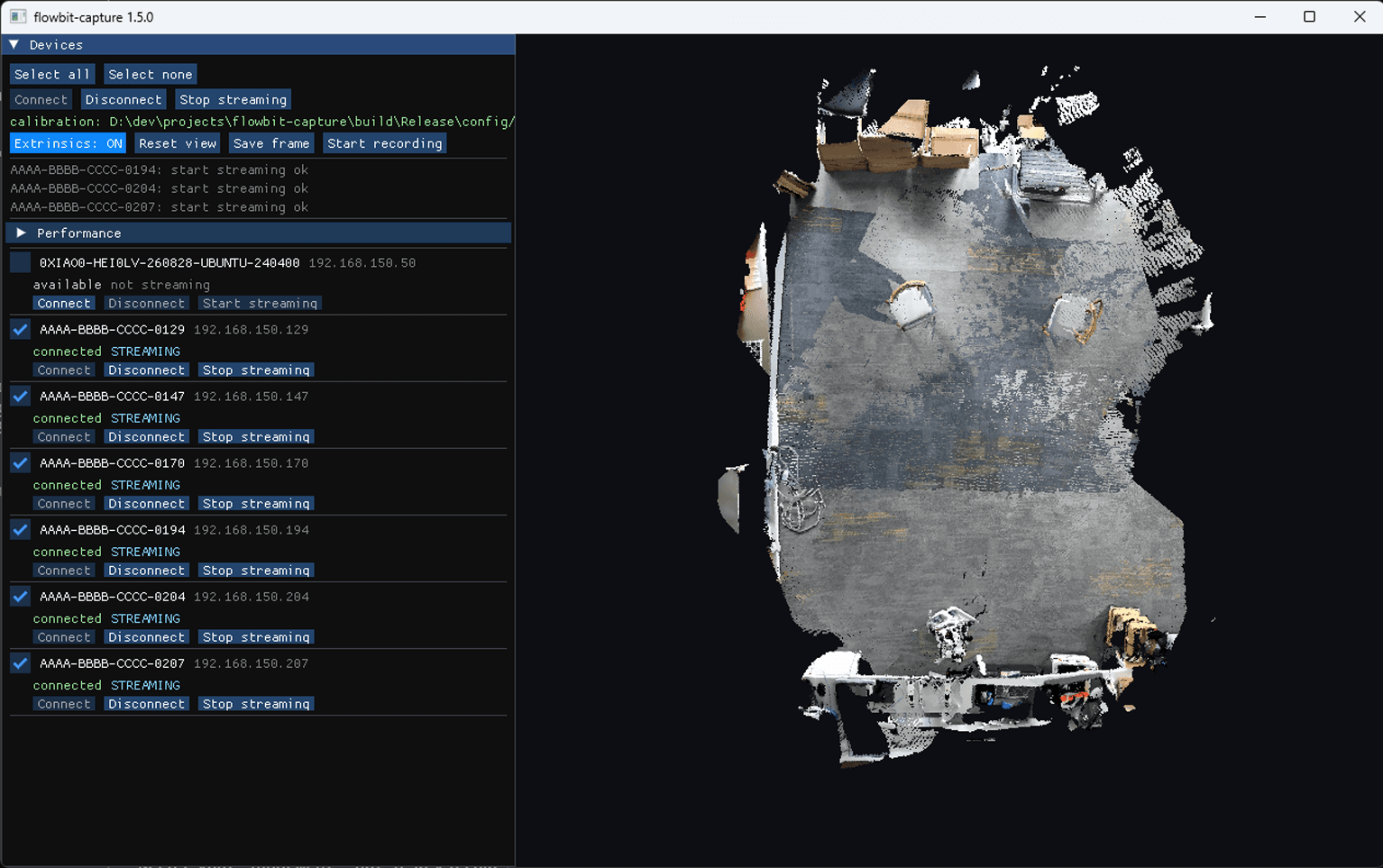
Flowbit Capture is the application that runs your rig. It finds your fixed cameras on the network, opens them, and draws what they all see as a single live 3D view of the room. It also records that video, saves individual frames to disk, and serves the cameras to Flowbit Calibration.
It is the first Flowbit software you install and the one you keep open while you work. Every other part of the system — calibration, the SDK, the Unity plugin — assumes the cameras are up in Flowbit Capture first.
What Flowbit Capture does
Finds your cameras. Discovers them over the LAN and re-scans every three seconds, so a camera that appears or disappears shows up on its own.
Streams colour and depth, synchronized across every connected camera by capture timestamp.
Draws one space. Once the rig is calibrated, all cameras fuse into a single 3D scene rather than a pile at the origin.
Records video to disk, one session at a time, with an index of every take.
Saves single frames — colour, depth and a point cloud per camera, plus that camera's settings.
Serves Flowbit Calibration, which drives your cameras through Flowbit Capture rather than talking to them directly.
Where it sits in the system
Flowbit Capture owns the connection to the cameras. Nothing else talks to them directly.
Flowbit Calibration connects to Flowbit Capture on
127.0.0.1:27015to trigger frames, and syncs the finished calibration back into it.The Flowbit Server SDK and the Unity Plugin open the cameras themselves, but read the same per-device configuration and the same Sensor → World extrinsics that calibration produces.
NOTE
Flowbit Capture binds
tcp://127.0.0.1:27015, so only one copy runs at a time. A second copy fails to start.
In this section
Install and Run Flowbit Capture - prerequisites, installation on Windows and Ubuntu, the configuration file, and the power-on test that proves your hardware works.
Interface - every button, the camera states, and what the Performance panel is telling you.
Features - moving the 3D view, recording video, and saving frames.
Troubleshooting - startup failures, cameras that will not connect, and pictures that never arrive.