Interface
Look up any control in the Flowbit Capture window here, and what the numbers in the Performance panel mean.
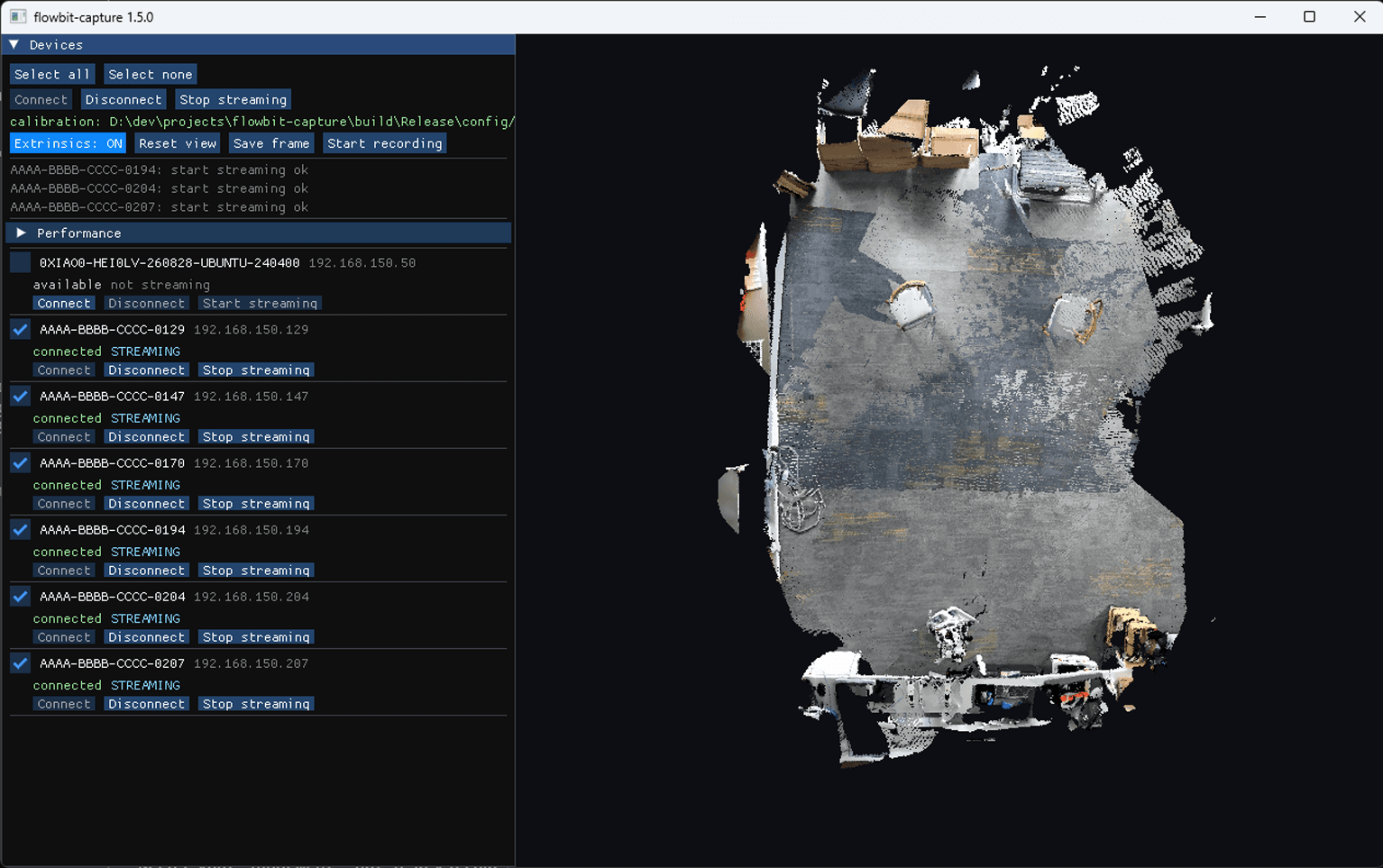
Buttons
Button | Does |
|---|---|
Select all / Select none | Tick or untick every camera. The buttons below act on ticked cameras |
Connect / Disconnect | Open or close the link to the ticked cameras |
Start streaming / Stop streaming | One button, not two - the label follows what the ticked cameras are doing |
Extrinsics: ON / OFF | ON fuses the cameras into one room; OFF draws each at the centre |
Reset view | Re-centre the 3D view |
Save frame | Save one frame from every camera |
Start recording / Stop recording | One button, as above |
The camera list
Each row is one camera, and its state tells you where it is in the connect-then-stream sequence:
State | Means |
|---|---|
| Found on the network, nothing opened yet |
| The halfway state after Connect - not a fault |
| Running normally. This is what you want against every camera |
Each camera's row carries its own Connect, Disconnect and Start / Stop streaming. Those act on that one camera whether or not it is ticked - the buttons above the list are the ones that follow the ticks.
Greyed-out buttons and busy states
A button greys out for one of two reasons: there is nothing for it to do, or the program is still busy with your last request. Hover over it to find out which.
Three buttons never grey out: Stop recording, Disconnect and Stop streaming. You can always use them, even while the program is busy.
NOTE
Those three do not interrupt the operation that is running. They record your intent and act on it once that operation finishes. A Connect to a camera that is discovered but powered off has no timeout, so it never finishes at all. If the window stops responding, close it and start again.
There is no Refresh button
The rig is re-scanned automatically every three seconds, so a camera that appears or disappears shows up on its own.
The rest of the window
Part | Shows |
|---|---|
REC <id> | Appears while recording, naming the session folder |
A running count | The operation in progress and how many seconds it has taken - at the end of the button row for a rig-wide job, and on the camera's own row for a single-camera one |
The last three lines | A short log strip under the buttons |
The Performance panel
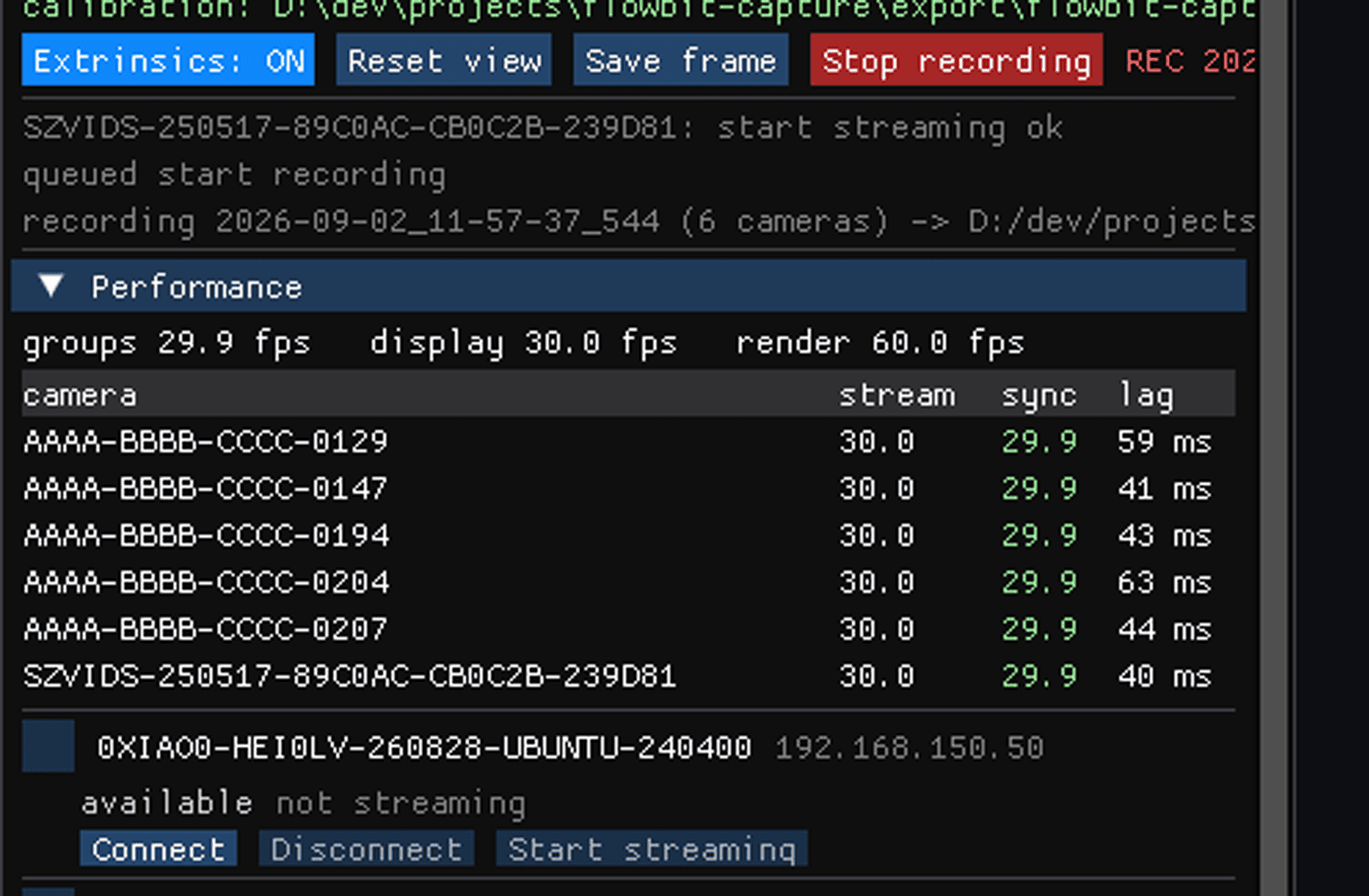
At the top, groups / display / render:
groups - how fast the rig produces synchronized frame groups
display - how fast they reach the screen
render - how fast the window redraws
Below that, one row per camera: camera, stream (frames the camera is sending), sync (frames this workstation kept) and lag.
A healthy rig has stream and sync tracking each other, groups and display sitting just under the camera rate, and render at the monitor's refresh rate.
Next steps
Features - move around the 3D view, record video, and save frames.